E-commerce unboxingCreate a polished e-commerce unboxing ad with a clear subject, strong opening composition, natural lighting, believable detail, and platform-ready commercial pacing.
Google Ads Generator
Pick your product, choose a Style and size, then generate. A Brand Guide is optional — turn it on for a consistent look.
Ad subject (what the ad is about)
Optional — leave empty to generate from your prompt alone (text only).
What are you advertising?
A product or e-commerce item
Style (the kind of ad — sets the look)
A clean, versatile ad — let the studio choose the angle
Brand Guide (optional)
Off by default — turn it on only when you want visual consistency across your ads.
Platform — where the ad runs
Placement
Generating at 1:1 for Feed Square
Or any ratio the model supports
On-image text (optional — blank = no text)
Prompt (editable — the scene & styling that drives the image)
Also applied (not part of the editable box above):
Your product stays exactly as your photo (shape, label, colours) — styling only touches the scene & lighting.
No invented text, logos, watermarks, prices or hex codes rendered on the image.
On-image text = only the slogan you typed (blank = none).
This step uses 1 credit
Google Ads Generator
A product photo in, Google Ads display creative out — landscape and square images for responsive display, with your product still looking like your product.
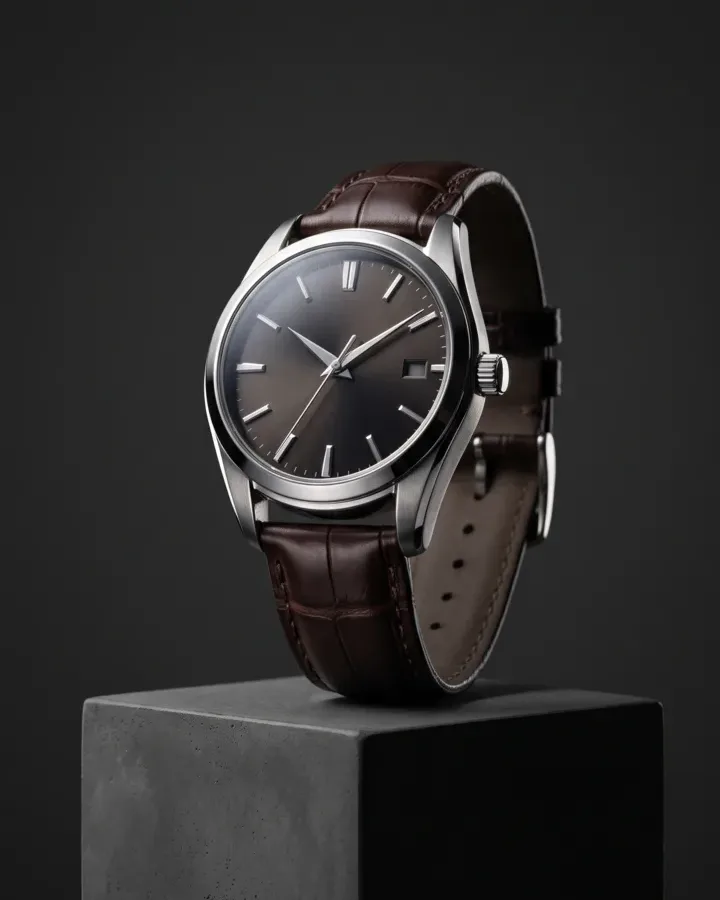
Google Ads Generator: One Product Photo Into Display-Ready Ads
Punchylime is the google ads generator that turns a product photo — or a store URL — into the creative a Google Ads campaign actually needs. Working as a google display ad generator, it restages your product in a clean studio or lifestyle scene, holds the label and shape true, and renders the landscape and square images responsive display ads ask for from the same upload. No photoshoot, no designer, no resizing by hand.
Make a Google Ad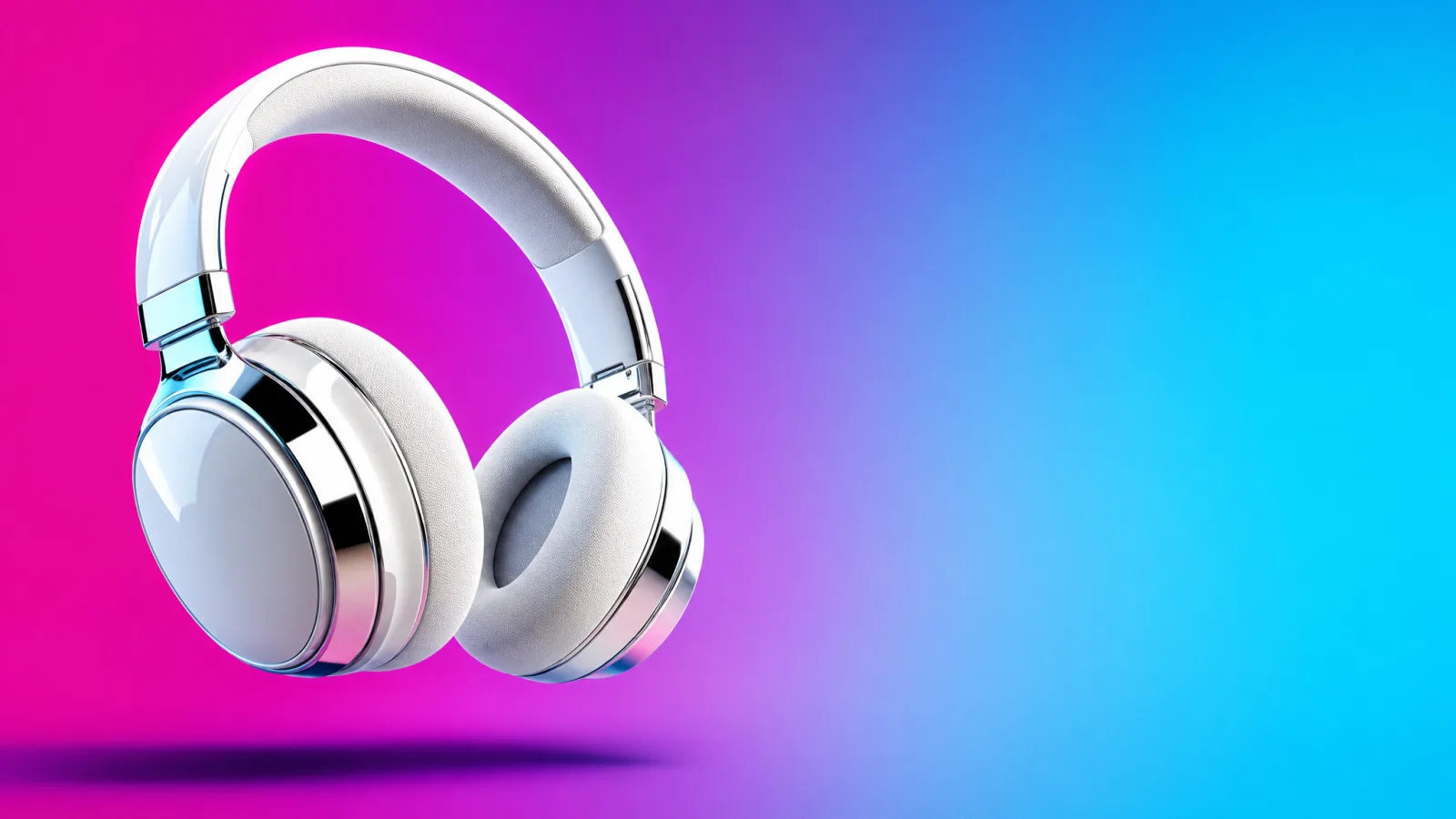
What a Google Ads Generator Actually Makes
Search text aside, a Google Ads campaign runs on image assets: Responsive Display Ads pull a landscape image, a square image, and a logo, and Google assembles them across the Display Network and Gmail. Punchylime is the google ad creator for that layer — feed it a product photo, a URL, or a description and it restages the product, holds the label and colour true, and generates at the ratio you pick — 16:9 for the landscape, 1:1 for the square. Unlike a plain image generator, it composes for the ad slot, so what lands in your Google Ads asset library is a display ad, not a square you still have to crop.
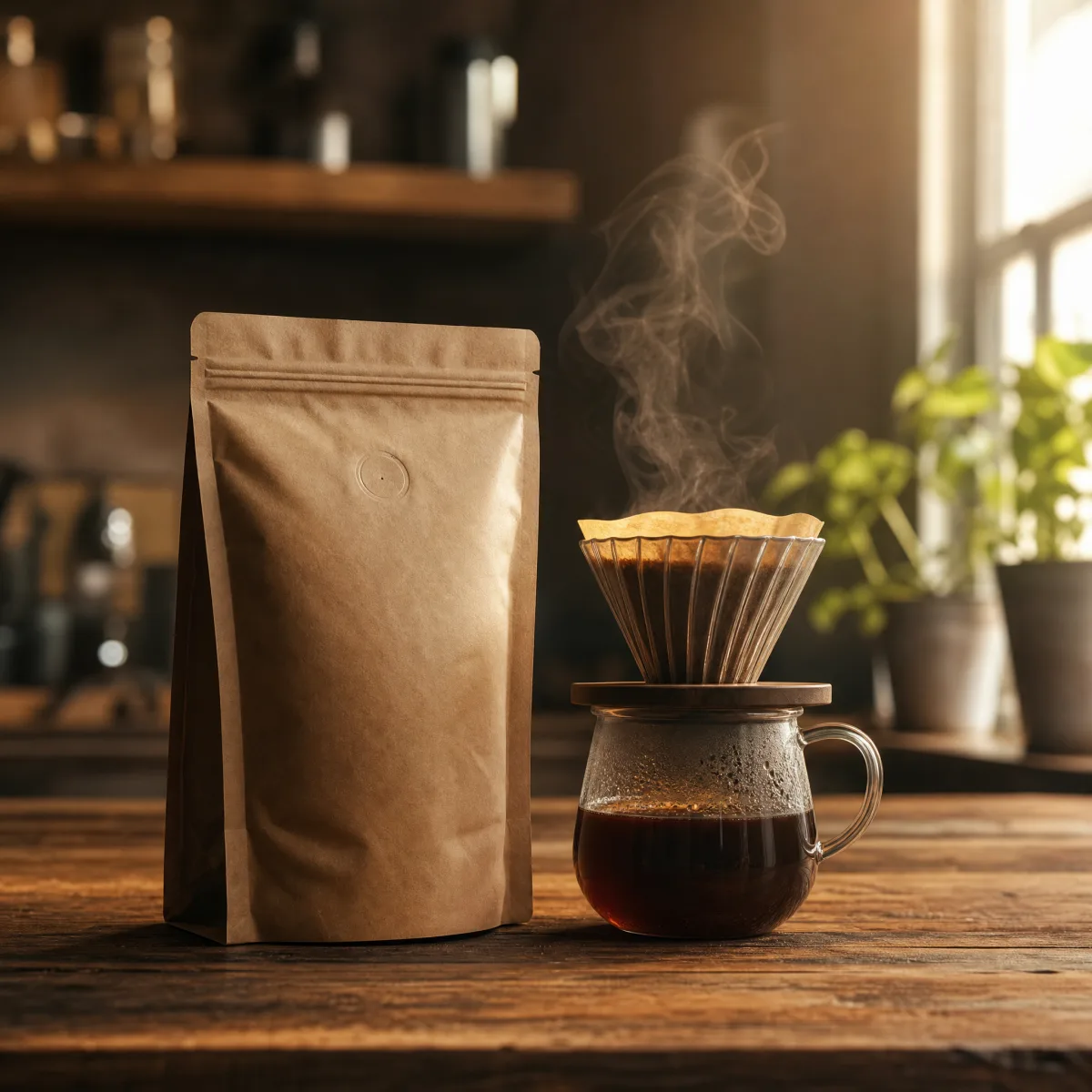
Why Build Your Google Ads Creative Here?
A display campaign needs more creative than any other channel — landscape and square for responsive display, plus every other slot you run — and a designer normally cuts each one by hand. This google ads maker collapses that into minutes: upload once and Punchylime handles the staging, the lighting, and the ratio you pick. Preview a draft for 1 credit, keep the images you push live, and regenerate with a fresh scene or headline to fight ad fatigue instead of booking a reshoot.
Done Cutting Every Banner Size by Hand?
Traditional Google Ads creative means a table-top shoot, a photographer, and a designer resizing the same visual into a dozen banner slots — days of turnaround and a fresh invoice each time you add a size or a season. Punchylime removes the crew and the wait. A phone snapshot becomes a display-ready image, the landscape and square versions come from the same upload, and it all runs on one credit wallet shared with your Meta, TikTok, video, and copy work — so a small team ships like a studio.
What Makes Punchylime a Real Google Ads Tool, Not an Image Filter
A generic image generator makes pictures. A google ads generator makes campaign-ready creative — the difference is product fidelity, Google-ready ratios, and assets built for the Display Network.
Your Product, Not a Look-Alike
Text-to-image tools redraw your product and get the logo wrong. Punchylime restages the exact photo you upload, so the bottle, box, or device in your Google ad is the one you actually sell — label legible, proportions intact, ready for review.
The Ratios Google Asks For
Google's Responsive Display Ads want landscape and square assets — pick 16:9 or 1:1 and the generator renders at that ratio instead of cropping one master down — so nothing is stretched and no headline is clipped.
Studio Scenes Without the Studio
Swap a kitchen-counter snapshot for clean on-white, a lifestyle set, or a gradient pop. You get product-photography lighting and staging for the whole Google Display Network set without booking a table-top shoot or masking anything by hand.
How to Make a Google Ad with Punchylime
From a single product photo to the responsive display assets and banner sizes a Google Ads campaign needs — three steps, no photoshoot, no designer.
Step 1: Add your product photo or URL
Upload one product photo — a phone snapshot works — or paste a store URL and Punchylime pulls the product for you. It reads the shape, colour, and label so your Google ad stays on-brand, no cut-out or reference sheet needed.
Step 2: Pick the scene and the Google sizes
Choose on-white studio, lifestyle, gradient, or seasonal, then pick the aspect ratio you run — 16:9 for responsive landscape, 1:1 for square, or 4:5, 9:16 and more. Write the headline you want on the ad, or leave it clean for your Google Ads asset library.
Step 3: Generate, then upload to Google Ads
The generator renders your ad at the ratio you picked. Preview it, regenerate for a fresh version if you want to push further, download as JPG or PNG, and upload straight into a Responsive Display Ad or a Performance Max asset group.
Google Ads for Every Industry
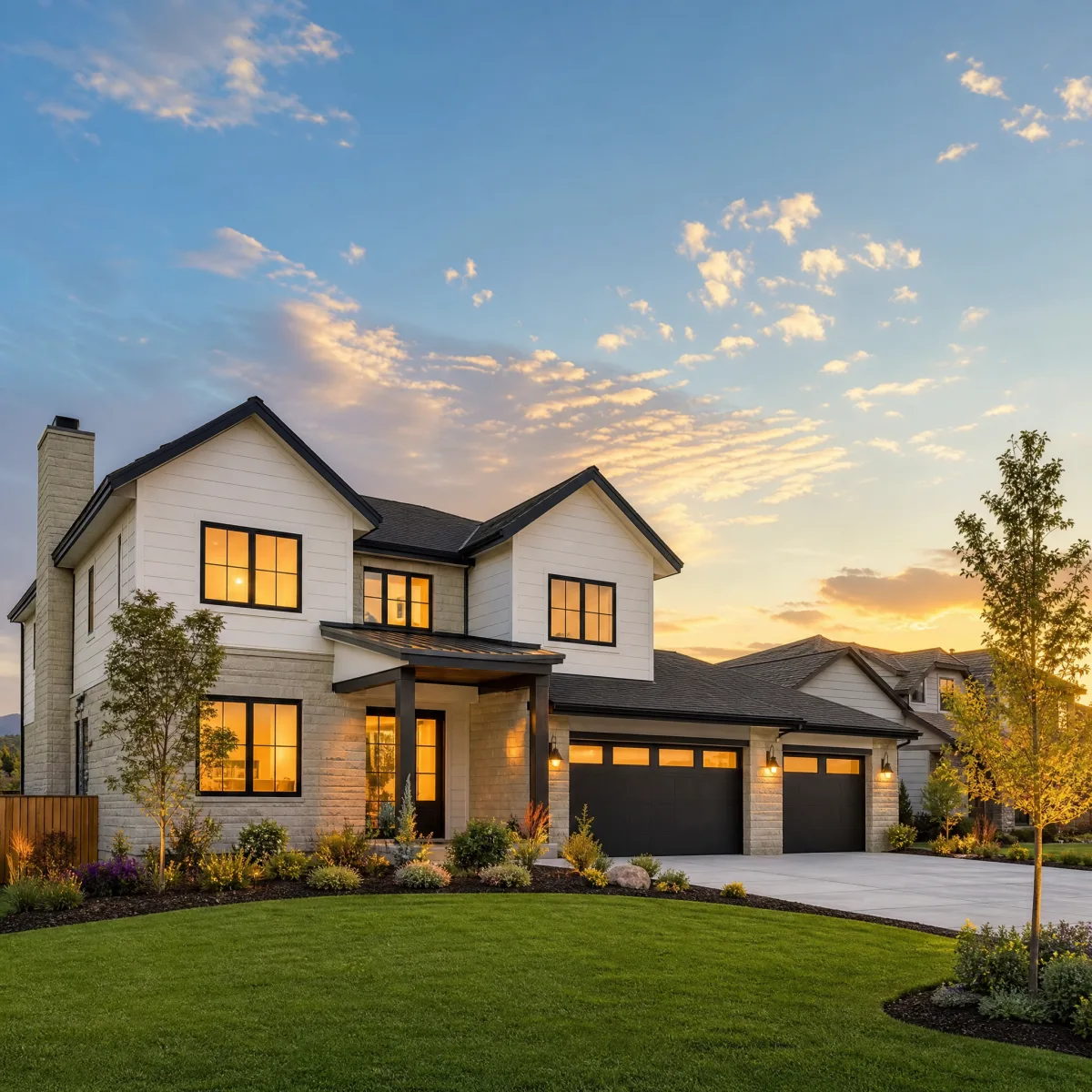
From e-commerce products to local services, Punchylime generates on-format Google Ads creative for the businesses that need it most. Every ad below is a real Punchylime output.
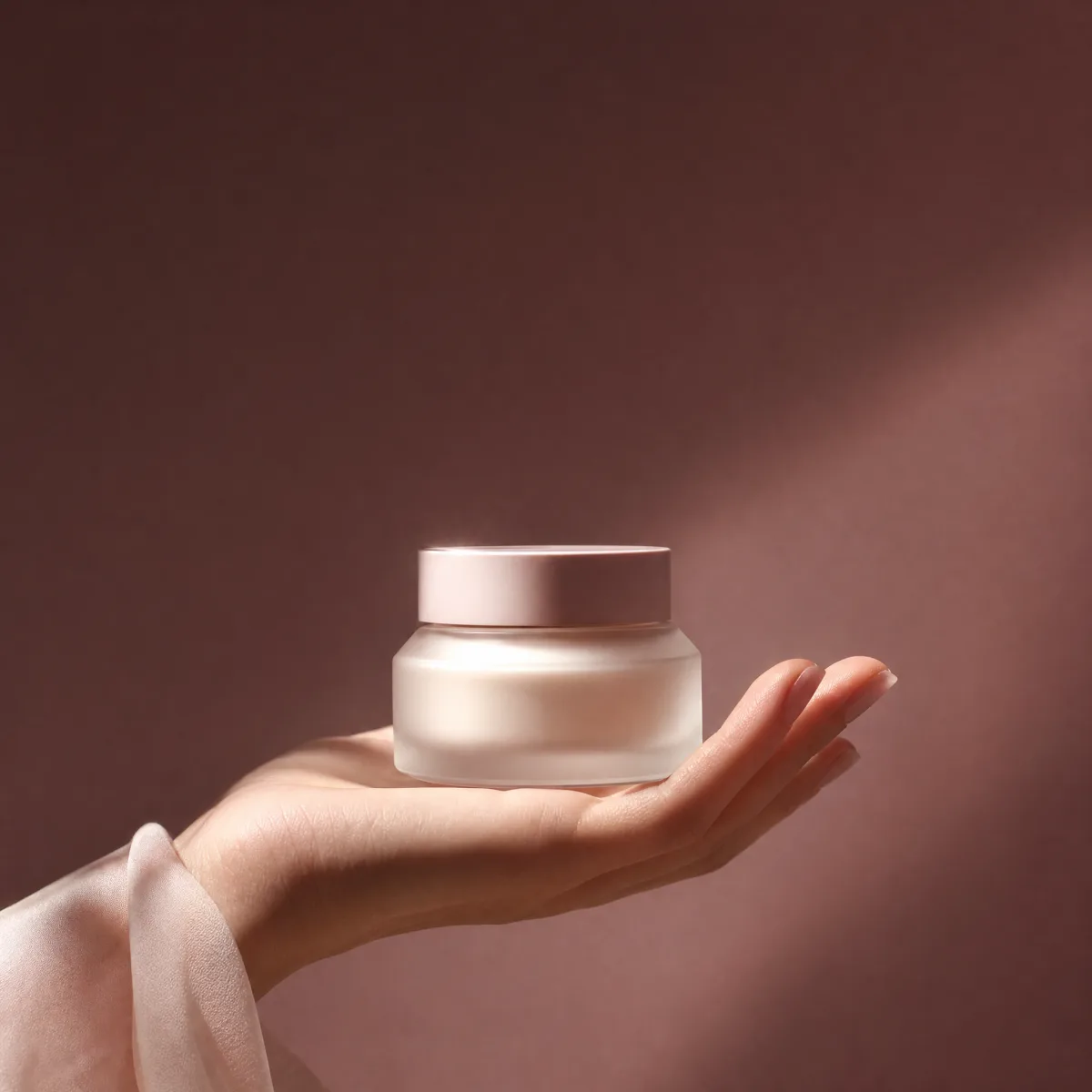
Beauty UGCCreate a polished beauty ugc ad with a clear subject, strong opening composition, natural lighting, believable detail, and platform-ready commercial pacing.
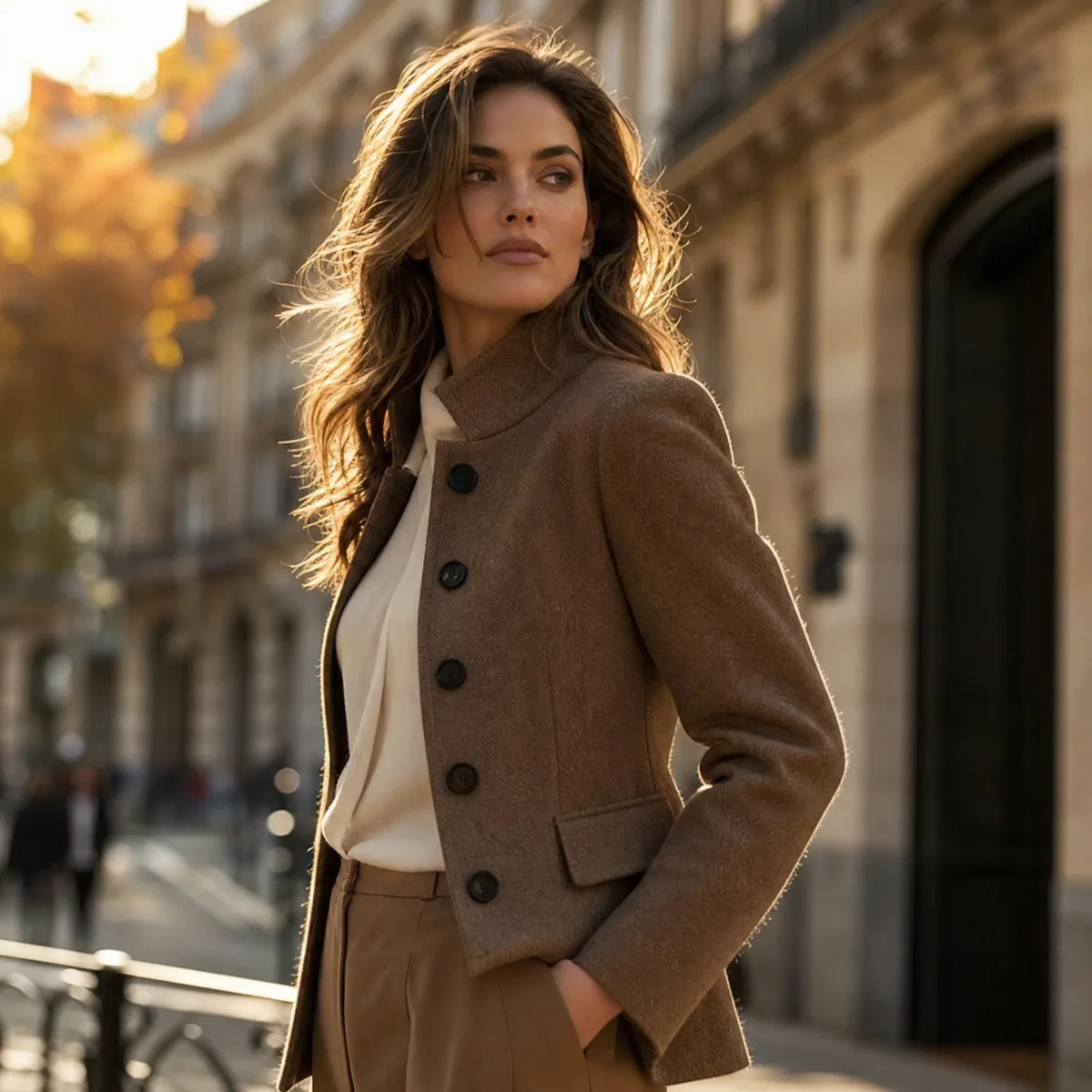
Fashion try-onCreate a polished fashion try-on ad with a clear subject, strong opening composition, natural lighting, believable detail, and platform-ready commercial pacing.
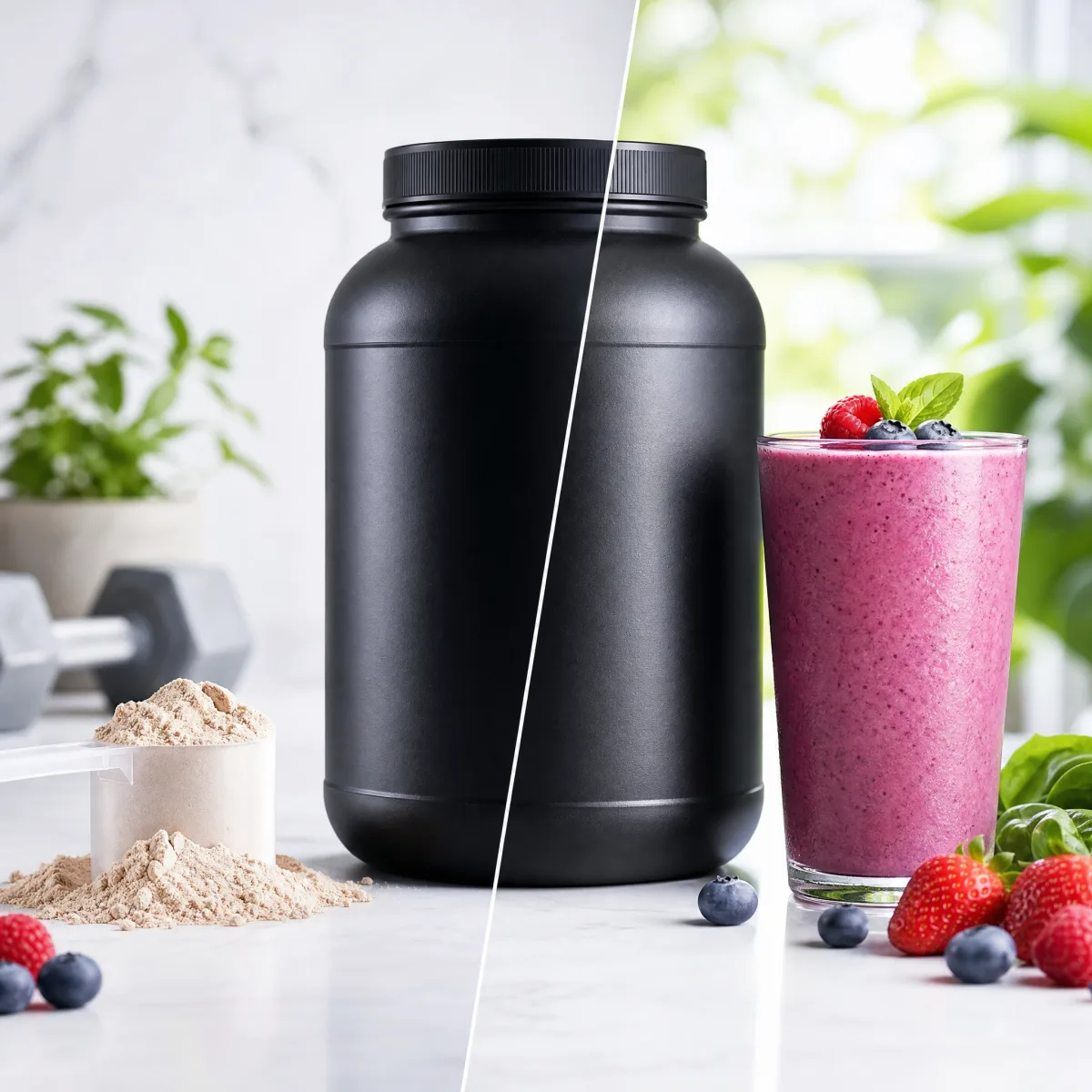
Fitness UGCCreate a polished fitness ugc ad with a clear subject, strong opening composition, natural lighting, believable detail, and platform-ready commercial pacing.
Food UGCCreate a polished food ugc ad with a clear subject, strong opening composition, natural lighting, believable detail, and platform-ready commercial pacing.
Apparel UGCCreate a polished apparel ugc ad with a clear subject, strong opening composition, natural lighting, believable detail, and platform-ready commercial pacing.
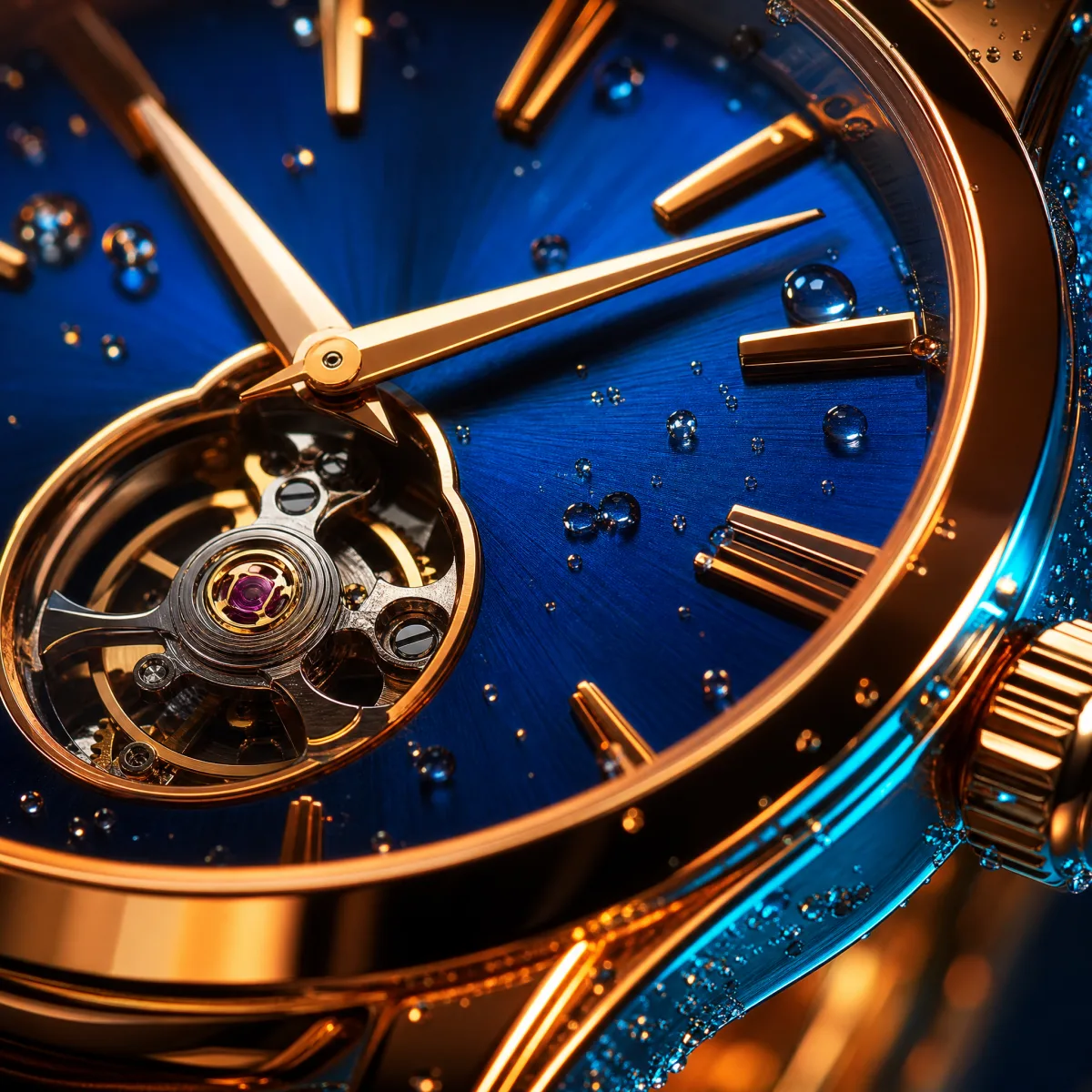
Jewelry productCreate a polished jewelry product ad with a clear subject, strong opening composition, natural lighting, believable detail, and platform-ready commercial pacing.
Food productCreate a polished food product ad with a clear subject, strong opening composition, natural lighting, believable detail, and platform-ready commercial pacing.
Automotive productCreate a polished automotive product ad with a clear subject, strong opening composition, natural lighting, believable detail, and platform-ready commercial pacing.
Home before / afterCreate a polished home before / after ad with a clear subject, strong opening composition, natural lighting, believable detail, and platform-ready commercial pacing.
Home & livingCreate a polished home & living ad with a clear subject, strong opening composition, natural lighting, believable detail, and platform-ready commercial pacing.
Decor productCreate a polished decor product ad with a clear subject, strong opening composition, natural lighting, believable detail, and platform-ready commercial pacing.
Your Next Google Ad Is One Product Photo Away
Upload a photo, pick the scene and the Google sizes, and let the google ads generator handle the shoot, the staging, and the resizing. A draft costs 1 credit — keep the sizes you decide to run, regenerate the rest.
Make a Google AdWhat the Google Ads Generator Does, and What You Feed It
A plain-English rundown of how the tool works, what you can start from, and how the output fits the way Google Ads campaigns actually run.
How it fits Responsive Display Ads and Performance Max
A Google Ads generator turns a still input — a product photo, a store URL, or a description — into the image assets a display campaign consumes, without a camera or a designer. Punchylime restages your product in a clean studio or lifestyle scene, holds the label, colour, and shape true, and renders the ratios Google asks for: pick 16:9 for the landscape or 1:1 for the square a Responsive Display Ad assembles from — the same assets a Performance Max asset group draws on. That fidelity is the whole point — generic text-to-image often warps labels and proportions because it invents the product from scratch, but anchoring the ad to the real photo you upload means the product still reads as yours once Google places it across the Display Network.
What you feed it, and every Google Ads size
You never need a studio shoot, a 3D model, or a cut-out PNG to begin. Upload one product photo — a phone snapshot on a plain surface is enough — and Punchylime uses it as the anchor, or paste a store URL and it pulls the product image and details for you. From that single input this google display ad generator renders the ratios Responsive Display Ads ask for: pick 16:9 for the landscape or 1:1 for the square. Because it generates at the ratio you pick rather than cropping a master, you are not stretching one image into every slot and clipping the headline — the landscape and the square both look intentional.
Google ad copy is a separate step
This tool builds the visual side of a Google Ads campaign — the display and Performance Max image assets. The headlines and descriptions a Responsive Display Ad or a Search campaign needs are copy, not imagery, so they come from Punchylime's ad copy tool rather than this one. Generate the creative here, write the lines there, and both draw on the same product and the same credit wallet.
1 credit per draft, ready to run
A draft costs 1 credit, so you can dial in the scene and the sizes before committing. Rendering the finished assets uses credits, priced per image and shown on the Generate button before you click. There is no separate subscription per format — the same credit wallet covers Google, Meta, TikTok, video, UGC, and copy — and the ads you generate are yours to upload to Google Ads and run.
More Punchylime tools
Every ad generator in the studio — swipe through, all on one login.
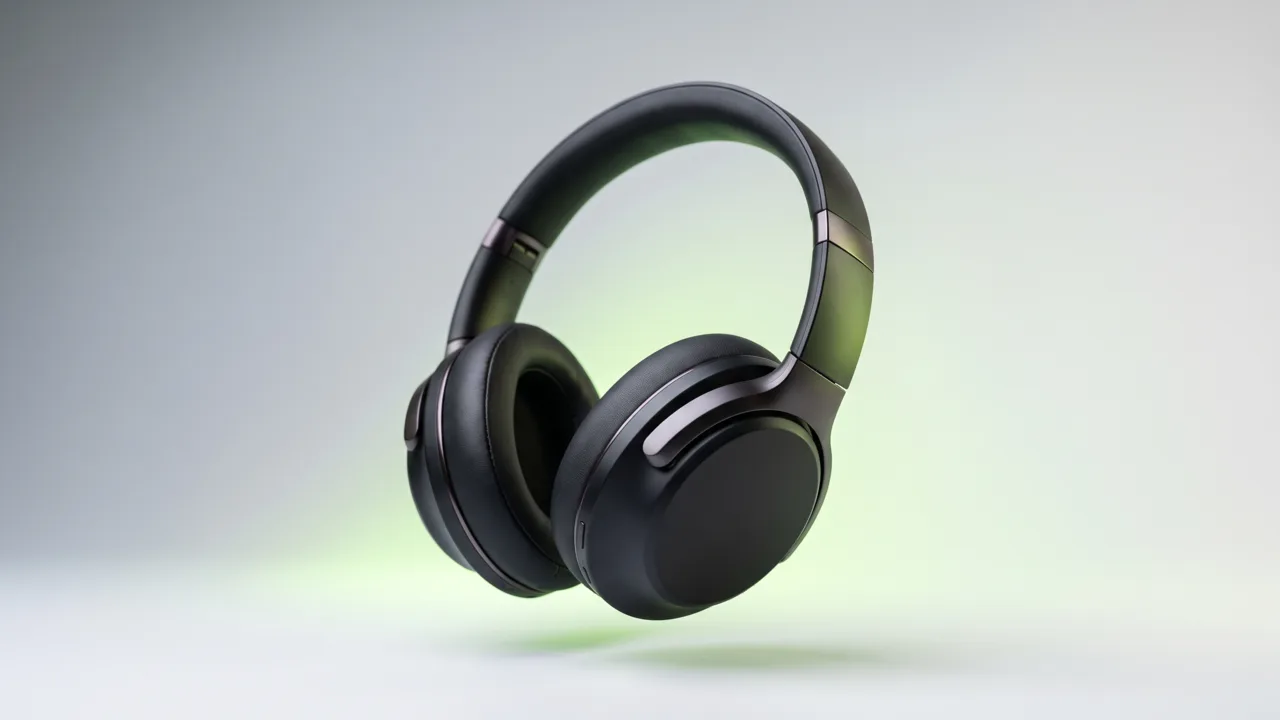
TikTok Ad Generator
The free TikTok ad generator that turns a product photo or URL into a scroll-stopping 9:16 TikTok video ad — no editor, no crew, no agency. Start free.
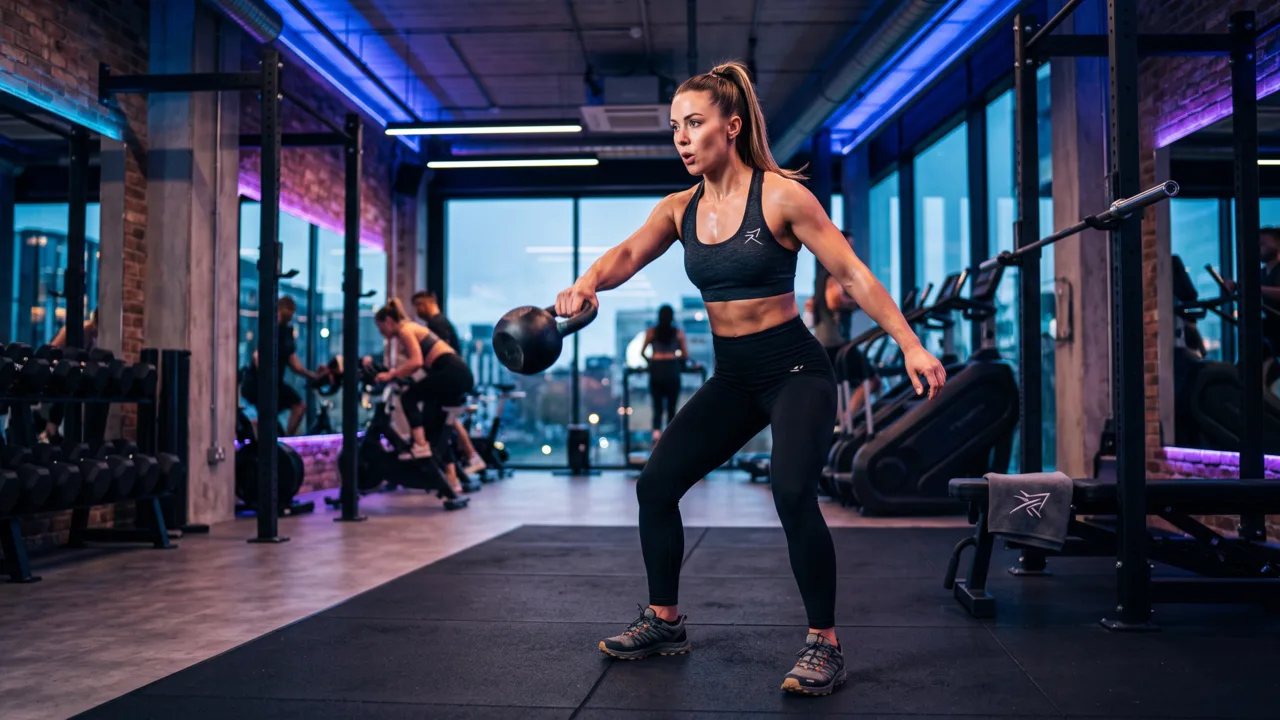
Instagram Ad Maker
The Instagram ad maker that turns a product photo or a URL into native Feed, Reels, and Story ads — sized for the placement, ready for Ads Manager. Start free.
UGC Prompt Generator
The free UGC prompt generator that turns one line about your product into several TikTok, Reels, and Shorts hooks with shot-by-shot directions. No signup.
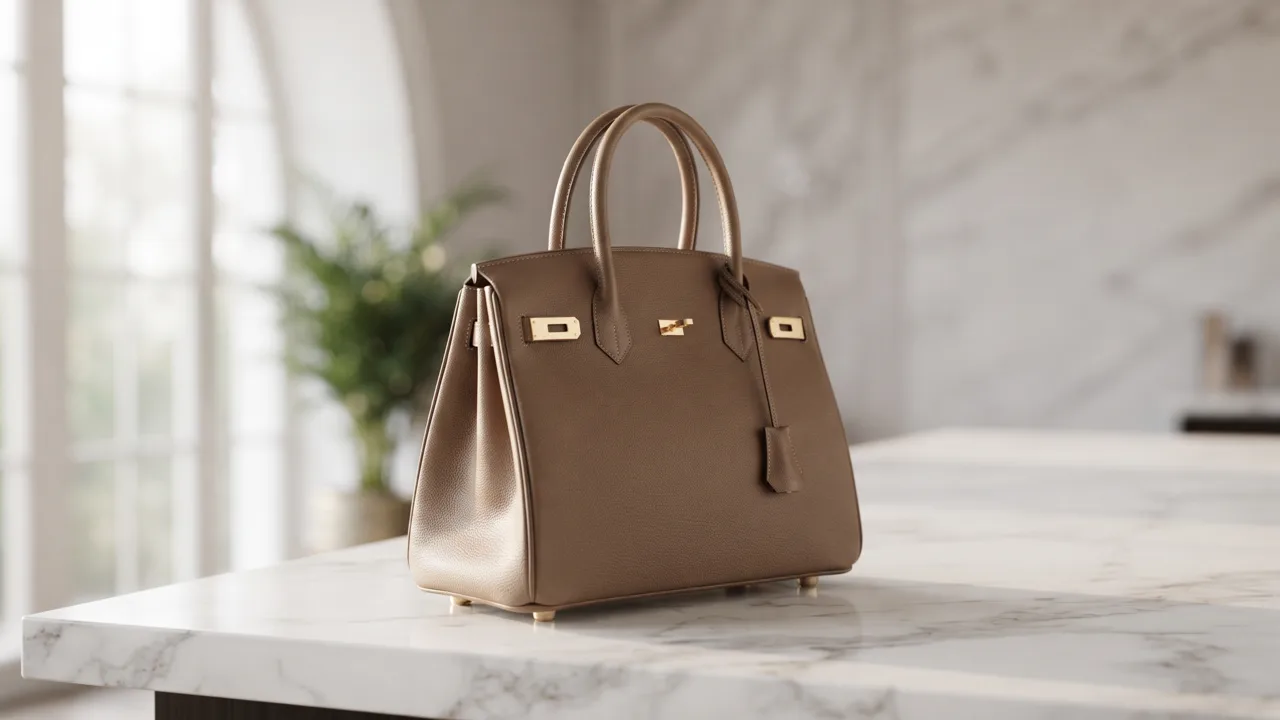
AI Product Photography
The AI product photography tool that turns one phone photo or URL into catalog-grade studio shots — no light tent, no photographer, no reshoot. Start free.
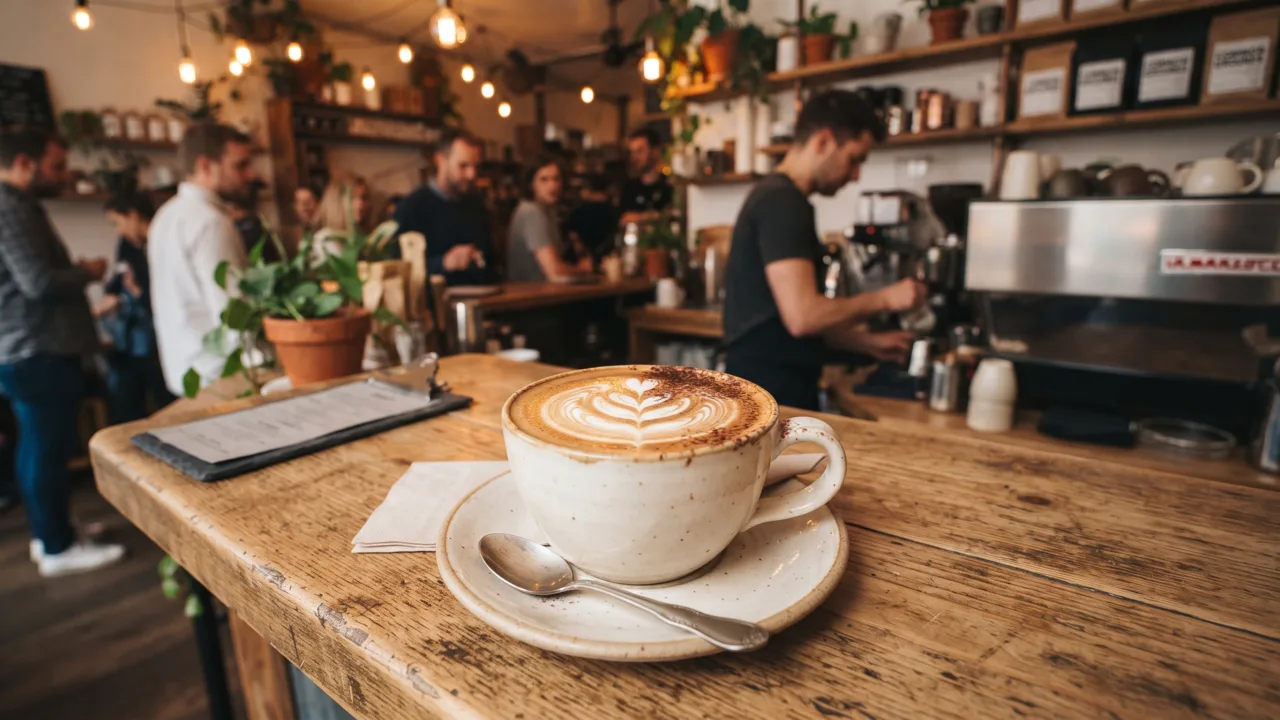
Video Ad Maker
Punchylime is the video ad maker that turns a product photo or URL into a scroll-stopping video ad in minutes — no editing software, no agency. Start free.
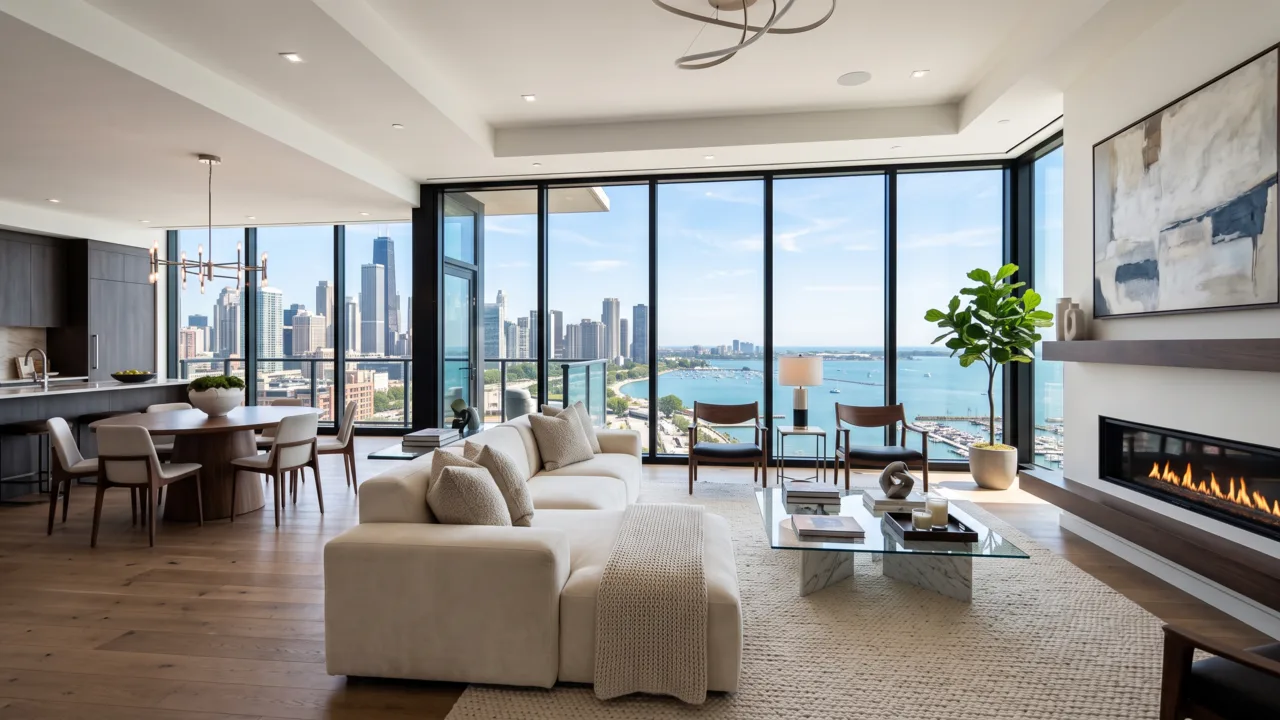
UGC Ad Maker
The AI UGC video generator that turns a product photo into creator-style UGC ads for TikTok and Reels in minutes — no creator to hire, no reshoots. Start free.
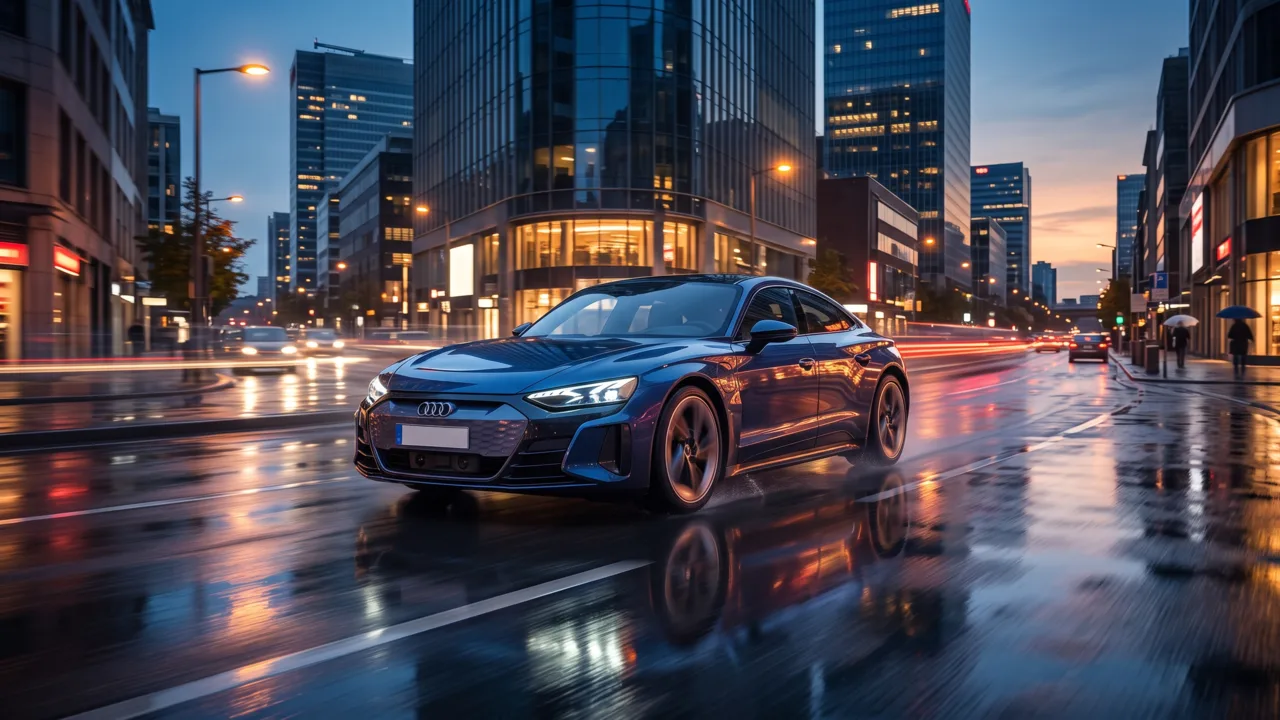
Ad Copy Generator
The free AI ad copy generator that turns one line about your product into ready-to-run Facebook, Instagram, Google, and TikTok ad copy — high-converting primary text, headlines, and hooks. Online, no signup.
AI Image Ad Generator
Make AI image ads from one product photo or a store URL — ads and banners in the ratio each placement needs, in minutes. No photoshoot, no designer. Free to start.
AI Video Ad Generator
The AI video ad generator that turns a product photo or URL into a scroll-stopping video ad in minutes — no crew, no editor, no agency. Start free.
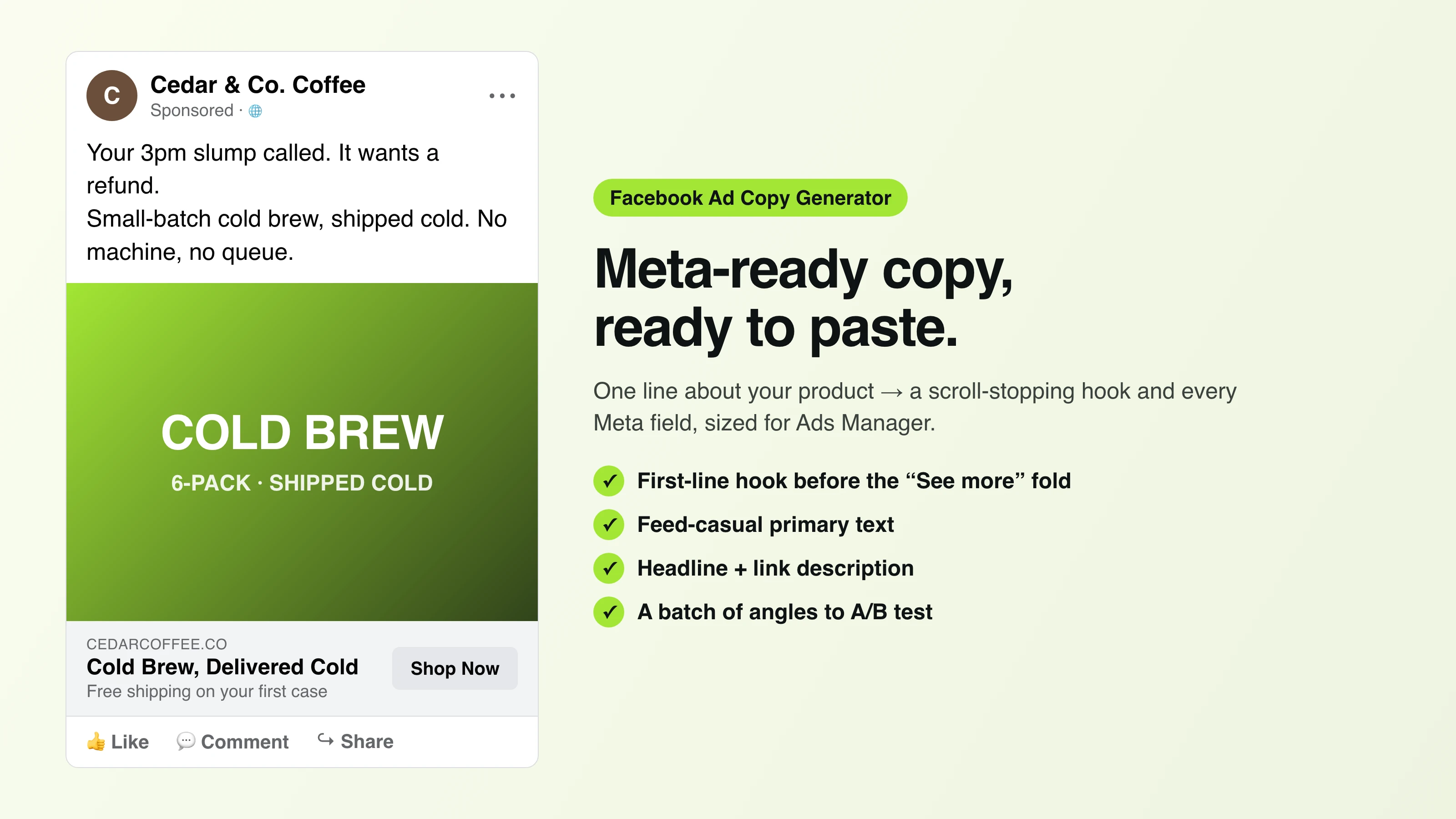
Facebook Ad Copy
The free Facebook ad copy generator that turns one line about your product into scroll-stopping Meta primary text, headlines, and link descriptions. No signup.
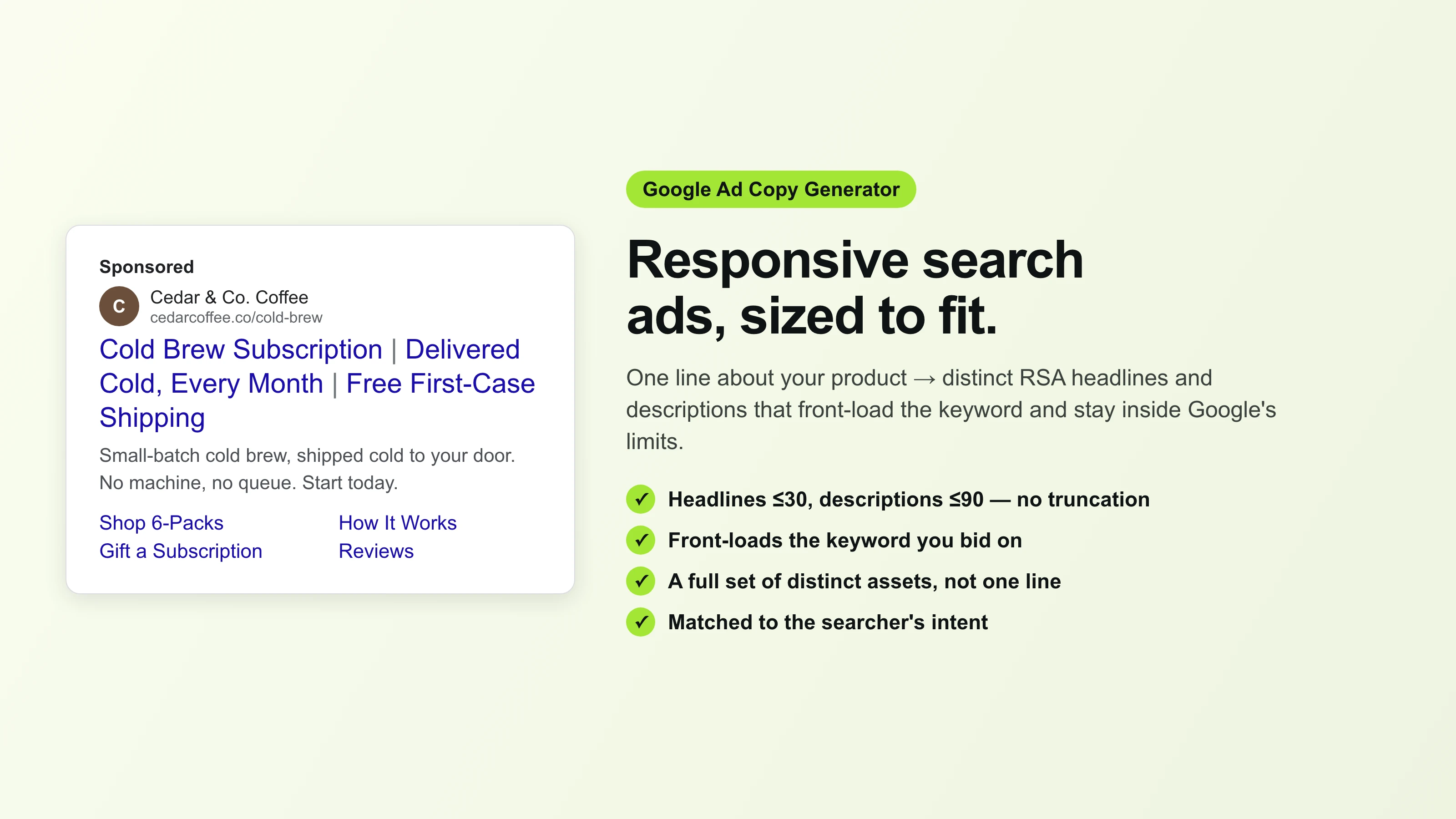
Google Ad Copy Generator
The free Google ad copy generator: turn one line about your product into responsive search ad headlines and descriptions that fit Google Ads’ limits. No signup.
Ad Script Generator
The free ad script generator that turns one line about your product into a shot-by-shot video ad script — hook, scene directions, voiceover, and CTA. No signup.
Advertising Copy Examples
Real advertising copy examples across industries and angles — plus a free generator that writes your own ad copy from one line about your product. No signup.
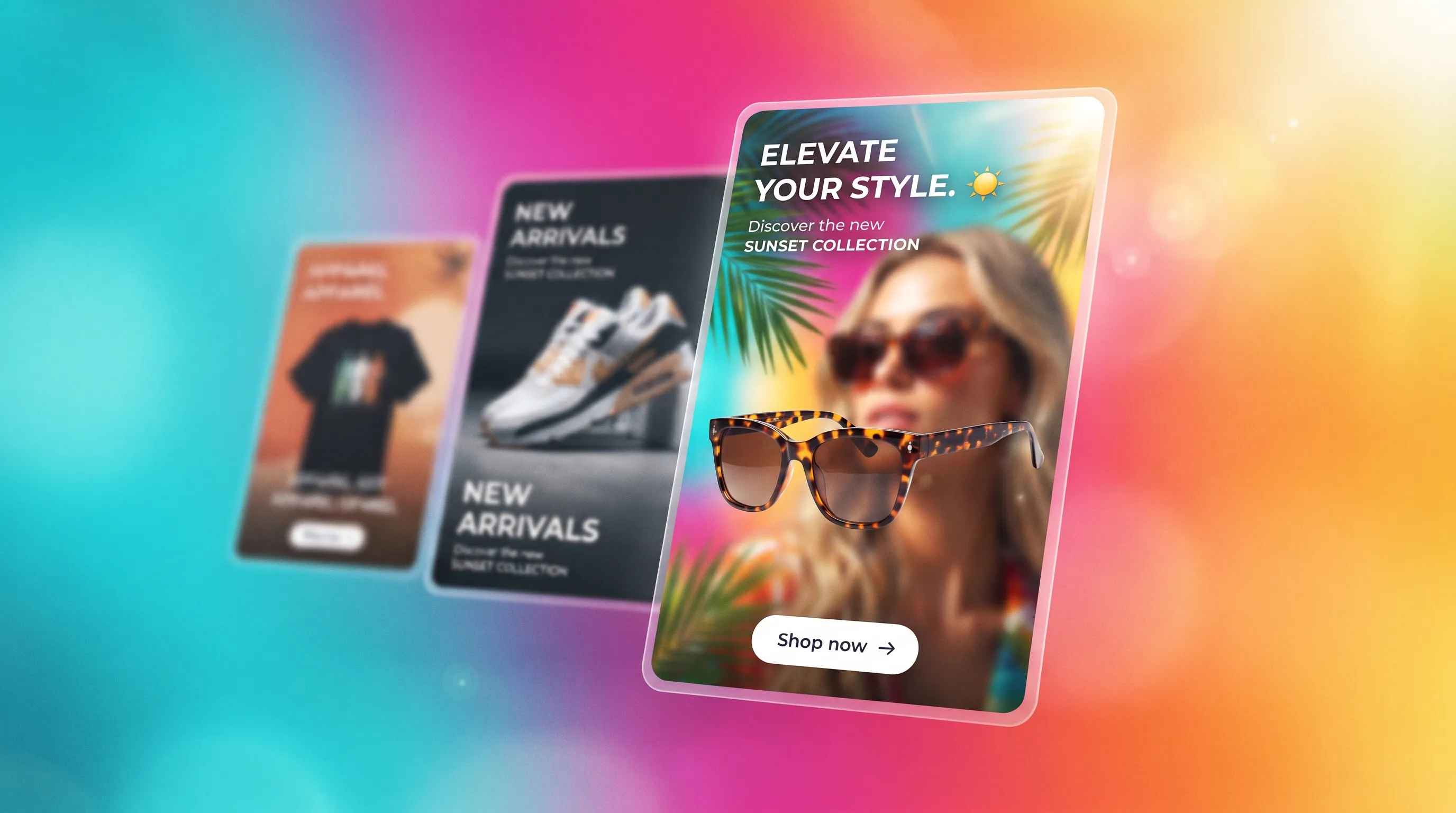
Social Media Ads Examples
Real social media ads examples by platform and type — Instagram, Facebook & TikTok — plus a free generator that makes your own ad from one product photo.
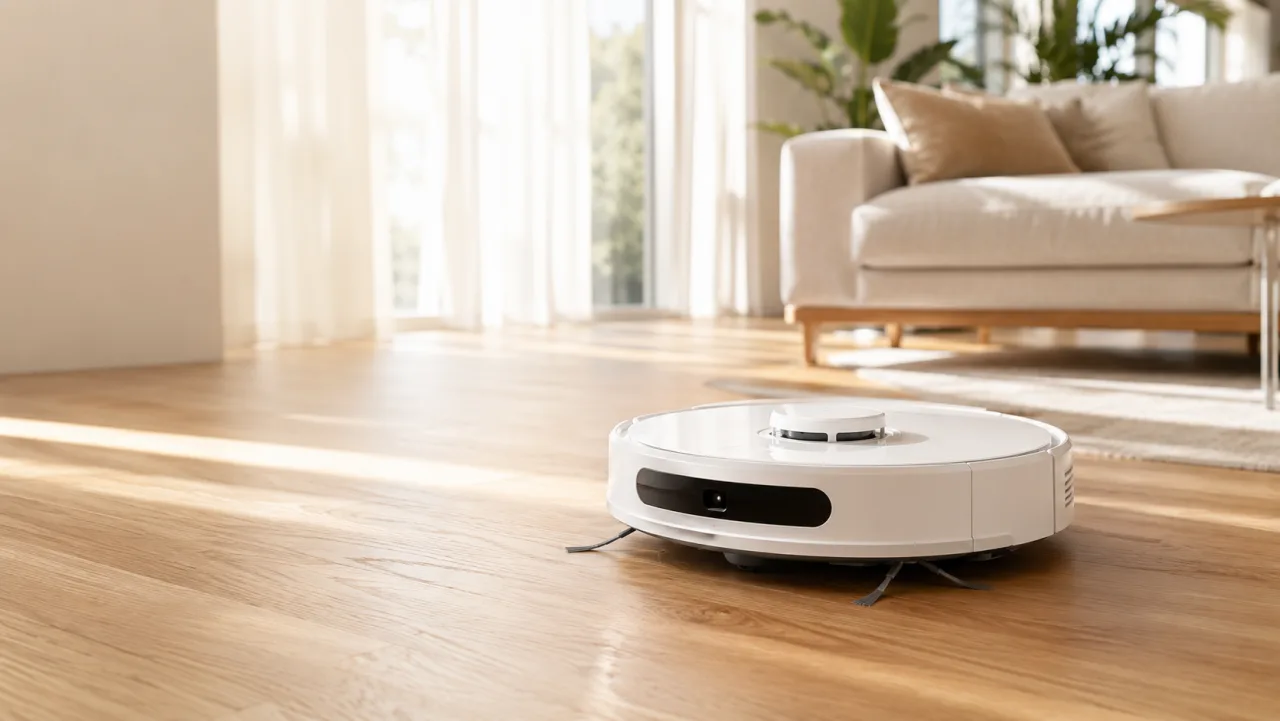
YouTube Ad Maker
The AI YouTube ad maker: turn a product photo into a native video ad for either YouTube size — 16:9 in-stream or a 9:16 Short. No editor, no crew, no agency.
AI Avatar Ads for Small Business
Affordable AI avatar generators for small businesses — put an AI avatar in a real scene and turn it into a vertical UGC video ad from $29, no crew. Start free.
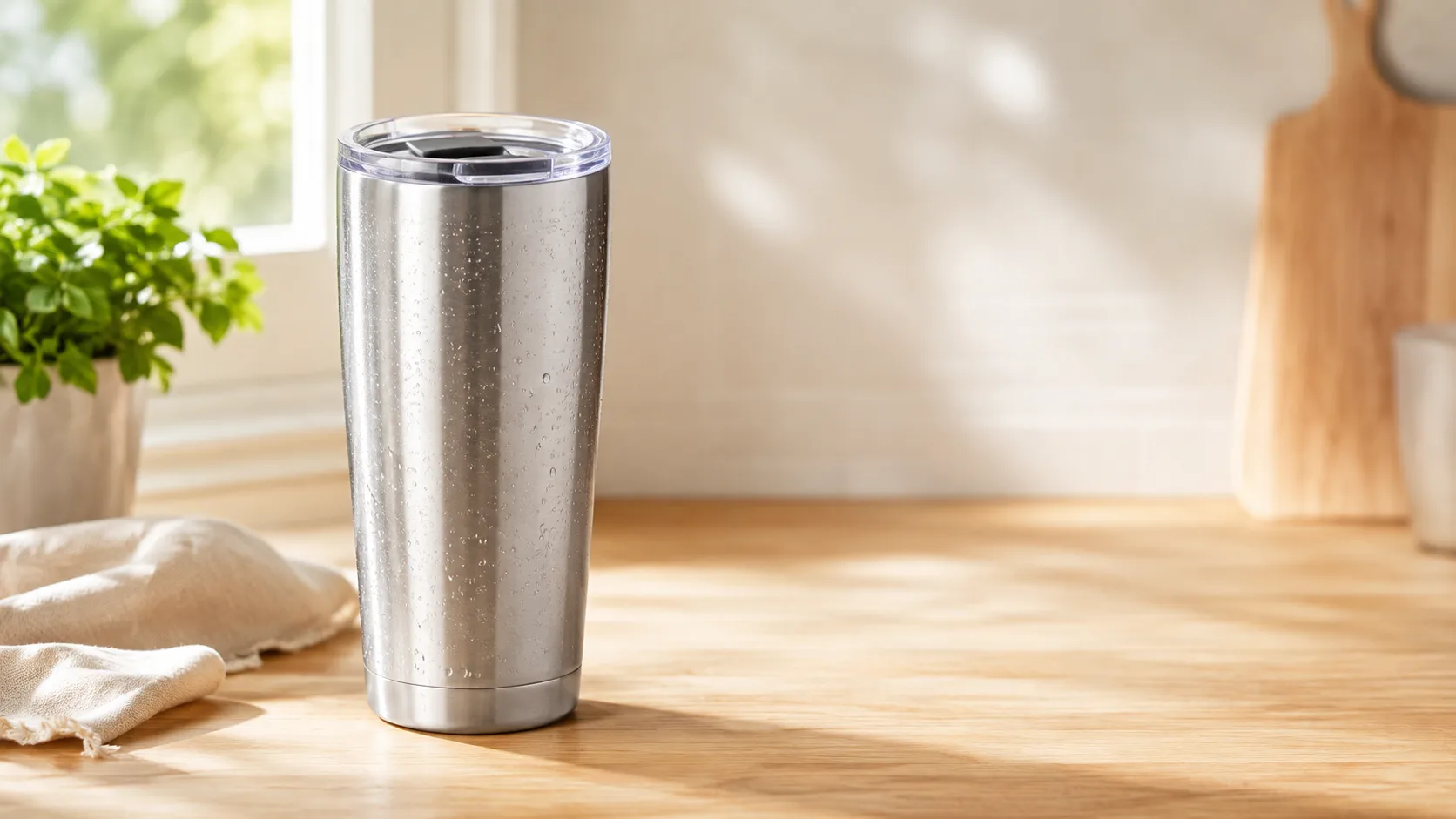
HeyGen vs Arcads
HeyGen vs Arcads compared: AI avatars, actor library, pricing, and output for UGC video ads — plus a product-first way to make an ad without an actor.
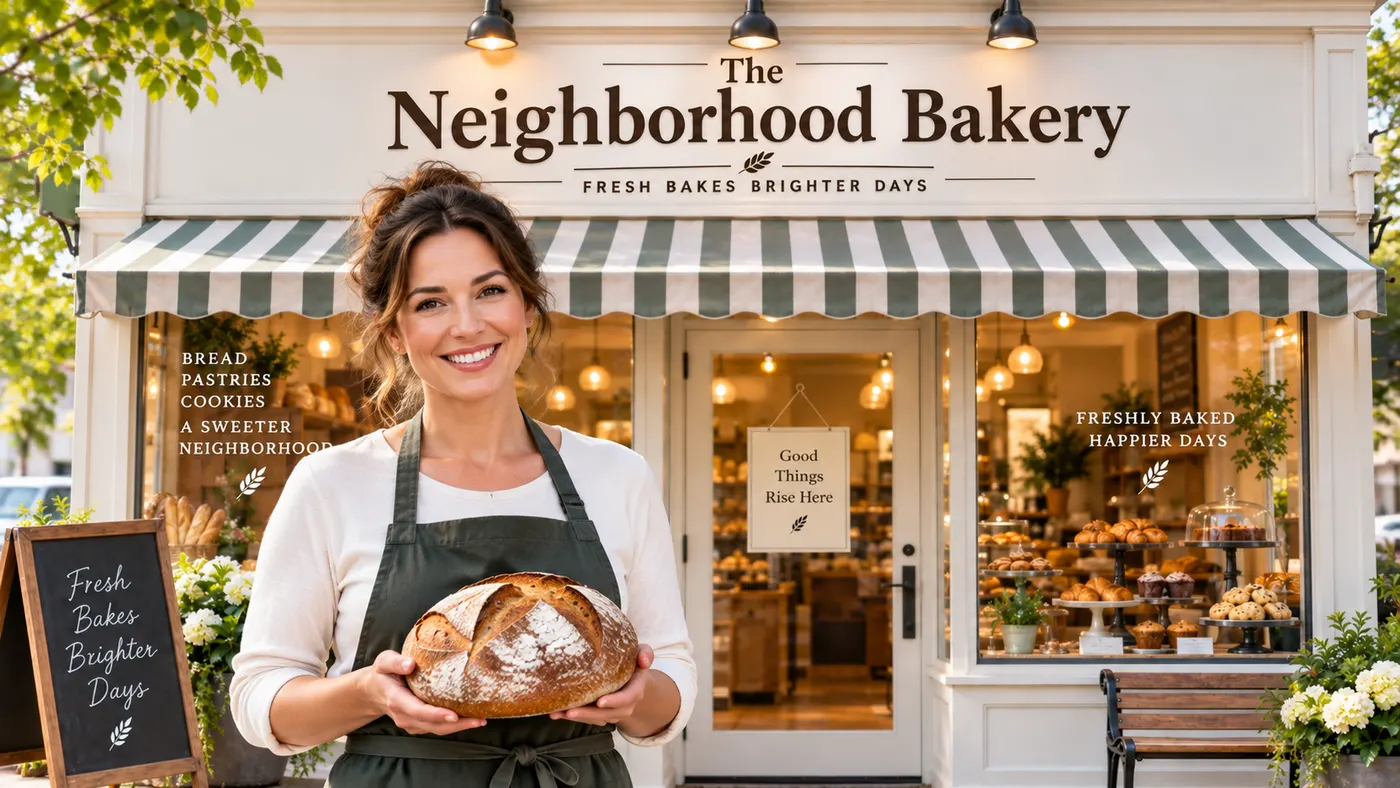
AI Spokesperson Video
Create an AI spokesperson video from your business photo and script: generate a believable presenter ad for offers, explainers, and calls to action.